PDFsPDFsPDFs
Built out of sheer frustration
All I wanted was for two of us to sign something.
One person signs in Acrobat, AirDrops the file to the second, who signs and sends it back. At some point even that stopped working for me, so I built a small PDF app for the Mac where several people sign on the same computer. It also fills in forms and splits or merges pages, and no file ever leaves your Mac. It’s free.
Free · macOS 13+ · MIT licence · no sign-up · English & German
How it started
Acrobat can sign. Until two people have to.
Acrobat handles a single signature just fine. Once two names have to go on the page, the dance begins: I sign, save and AirDrop the file to the other person, who signs and sends it back.
Then one day it stopped working altogether. The signature wouldn’t sit right, something kept failing, and I was hunting for one feature in a program that has turned into a cockpit of cloud offers and account prompts over the years.
My Mac can do all of this on its own. What was missing was a program that does exactly these few things and nothing else.
AirDrop ping-pong
Three round trips for two names. At the same table it would take two minutes.
Please sign in first
Before you’re allowed to save, someone wants your email address, then an account, then your document in their cloud. For a name at the bottom of a page.
What this stands for
Four rules. Then I’ll shut up and you’ll have your PDF.
The app is small on purpose. It does the everyday jobs and leaves out everything that gets in your way.
Two signatures, one computer
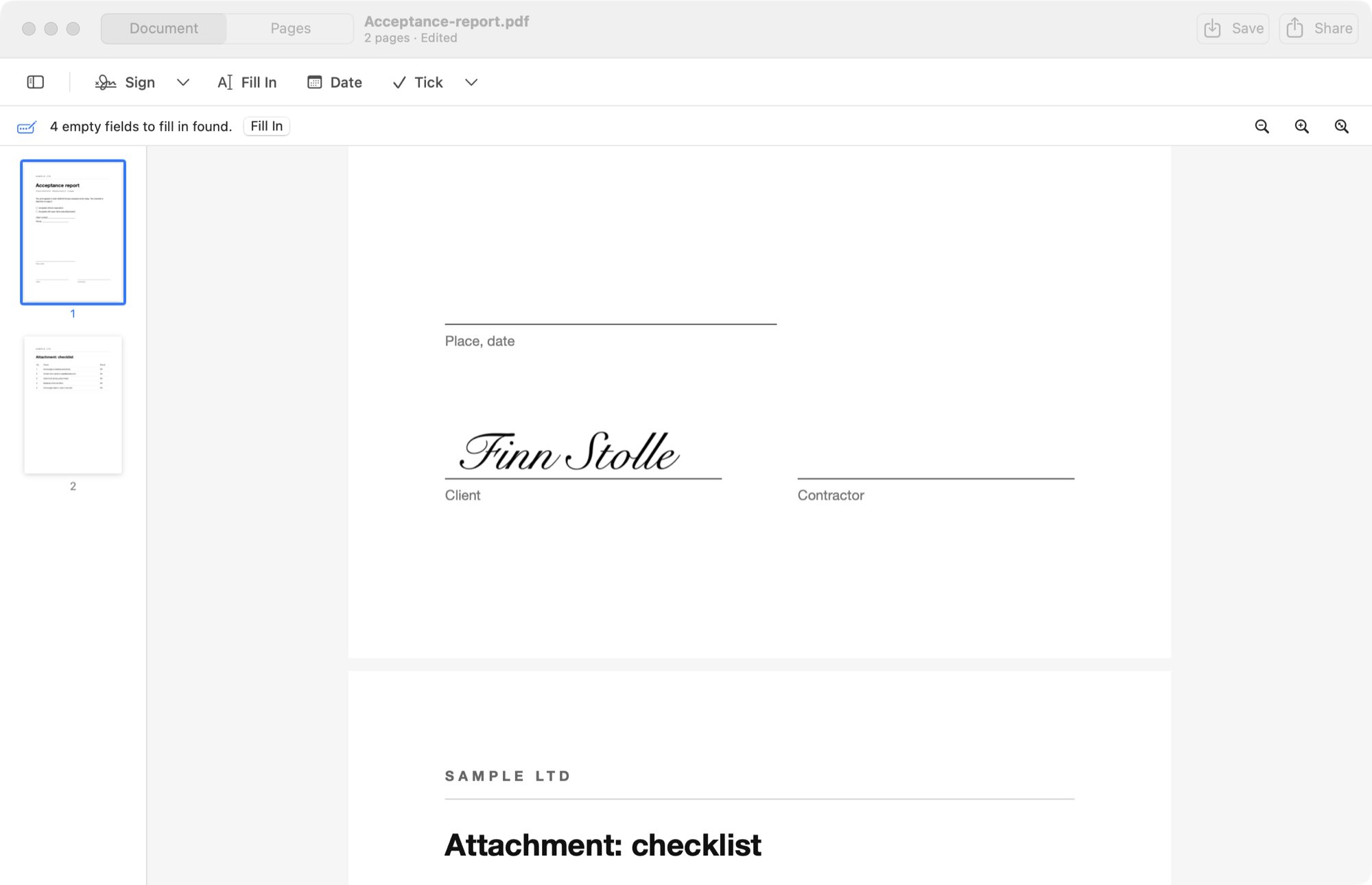
Add both people with their signature and initials. Then you sign the same document one after the other on the same Mac, and nobody has to say “send it to me again”.
Two views instead of menu hunting
At the top of the window you switch between Document and Pages. In Document you sign and fill in, in Pages you sort, split and merge. There are no ads and no subscription nags.
Everything stays on your Mac
There is no server and no account. Your documents never leave your computer, because there is simply nowhere for them to go.
Free and open
No subscription, no pro version, nothing greyed out. The full source code is on GitHub under the MIT licence. Don’t take my word for it, go and look.
What’s inside
Two views. Both do PDFs.
At the top of the window you switch between Document and Pages, with a click or with ⌘1 and ⌘2. And behind that? PDFs. And behind those? More PDFs.
Sign
One click and it’s on your cursor
The reason this app exists. Click “Sign”, your signature follows the pointer half-transparent, and the next click puts it on the page. The arrow next to it gives you initials, another person or a new signature.
- As many people as you like, each with their own signature and initials
- Draw your signature, type it in a handwriting font or drop in a picture (the app removes the white background)
- Initials on every page if you need them
- Drag the corners to resize, turn it with the blue handle, delete it with the red ×, and ⌘Z undoes every step
Fill In
Forms that don’t have any fields
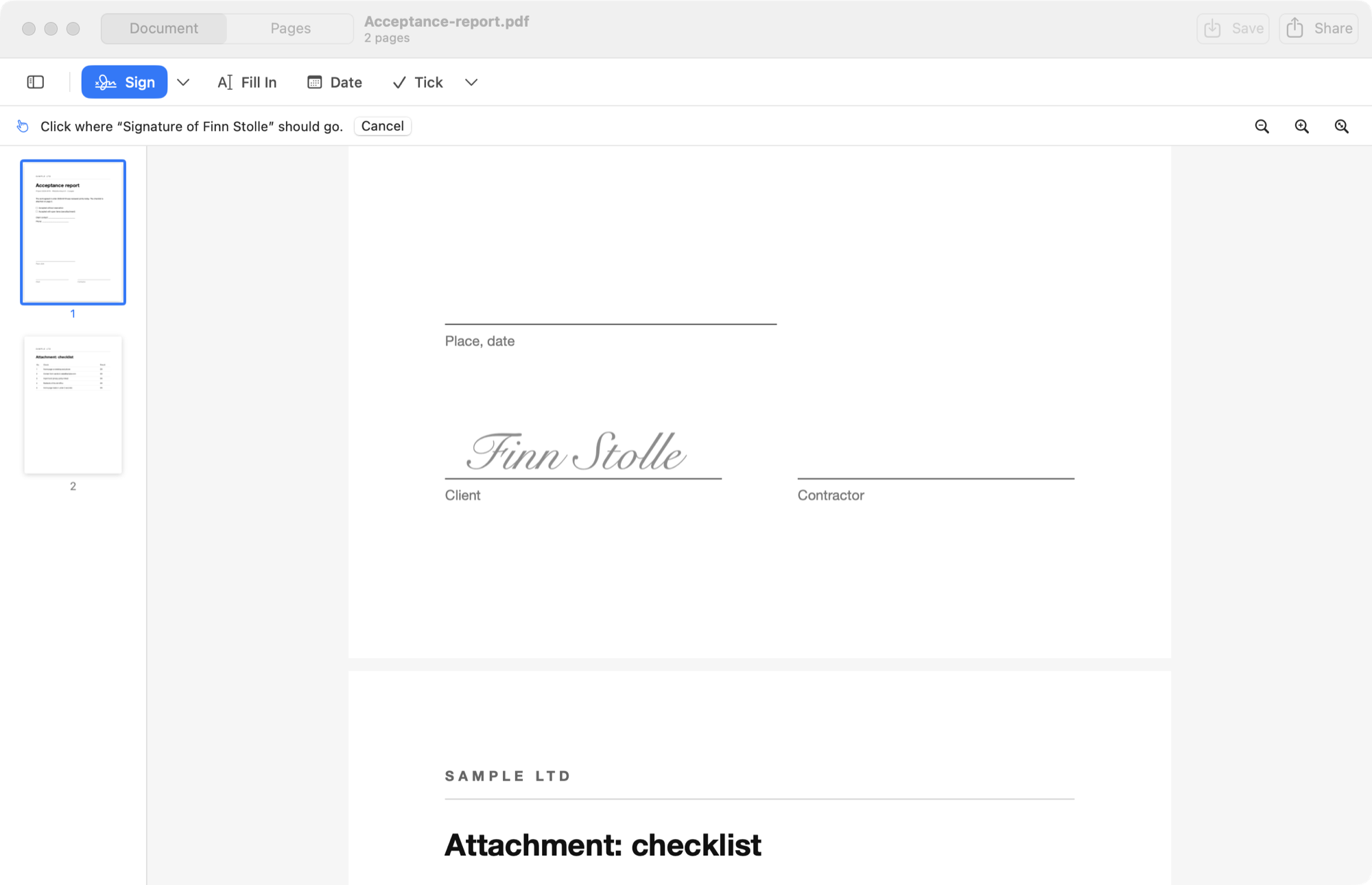
Most PDFs you’re asked to fill in have no form fields, just lines and boxes. The app finds those blanks the way Acrobat Reader does, in scans too, and marks them blue. Click into one and type, Tab jumps to the next.
- Finds writing lines, “______”, empty boxes and “Name:” with space after it; real form fields you fill in directly
- Today’s date in one click, plus a tick, cross or dot for boxes
- Outside the fields, click anywhere and start typing, with the font size right there in the toolbar
Pages
Sort, split, merge
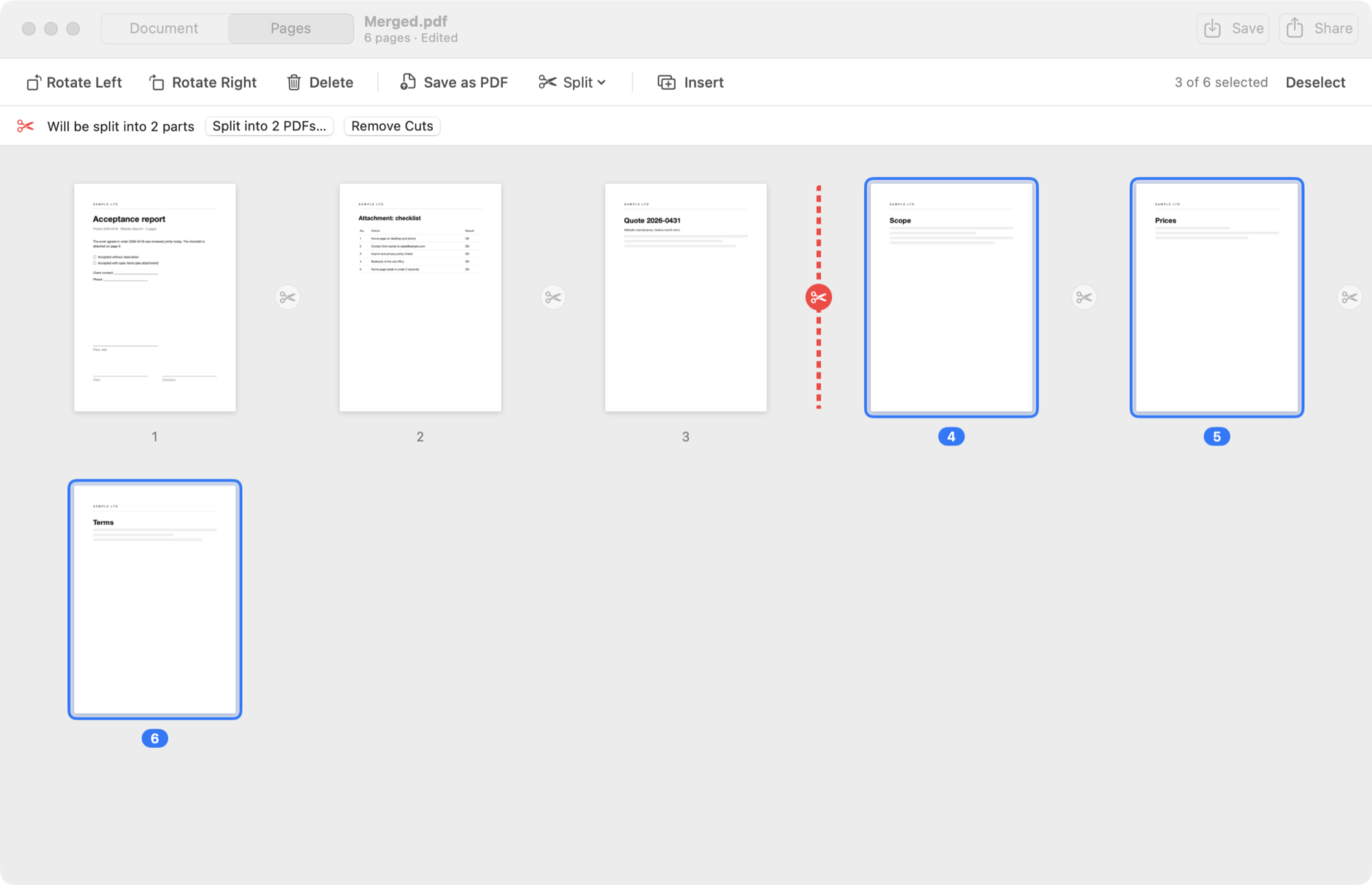
The Pages view lays out every page in a grid, big enough to see what’s on it. Drag pages to reorder them, and drop another PDF or an image exactly where it should go.
- Rotate, delete or save the selected pages as a new PDF
- Split: click ✂ between two pages, then “Split into 2 PDFs”. Or save every page as its own PDF
- Drag several PDFs into the window at once and they land as one document in the grid
- Page-only changes are saved losslessly, so text, links and forms survive
Convert
Images in, PDF out, and back again
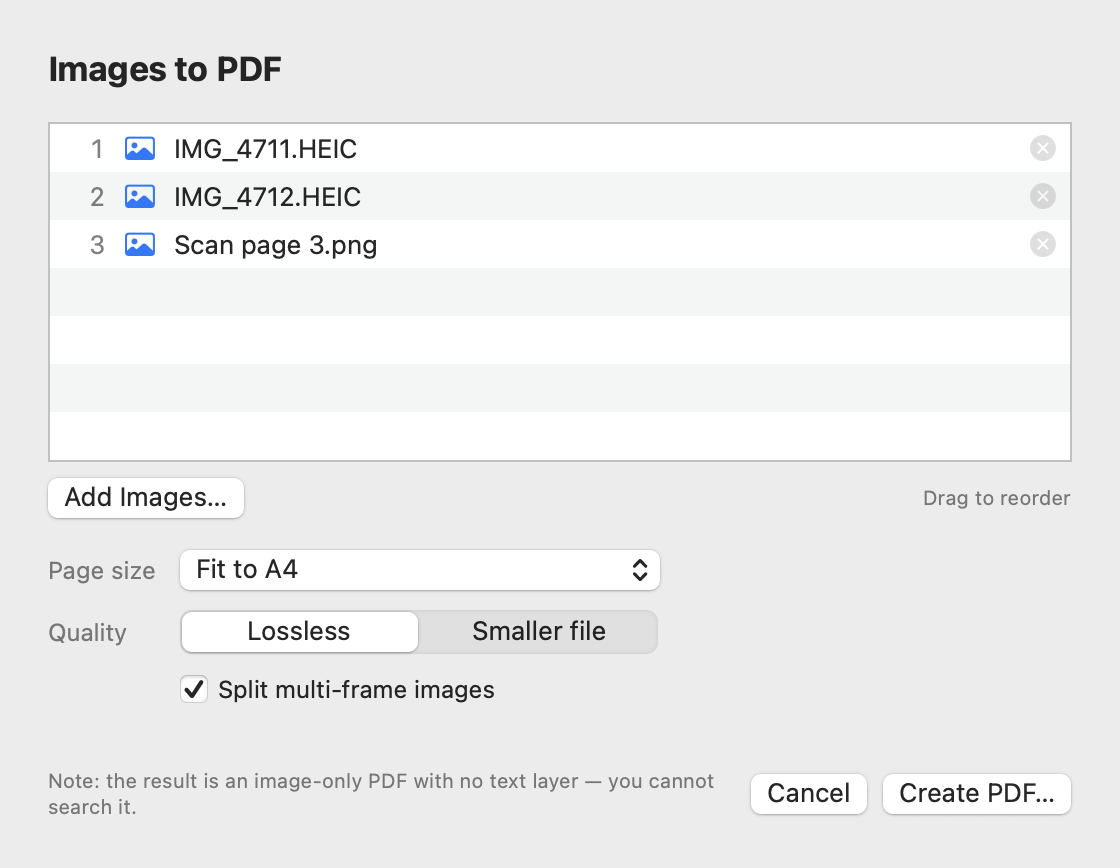
Photos and scans become one PDF, and the other way round every PDF page comes out as an image. Multi-page TIFFs from a scanner and animated GIFs give you one page per frame, instead of only the first one surviving as in many converters.
- JPEG, PNG, HEIC, TIFF, GIF, BMP, WebP, AVIF and SVG
- Fit to A4 or Letter, lossless or as a smaller file
- PDF → images (File › Export as Images) as PNG, JPEG, TIFF, HEIC or AVIF at 150, 300 or 600 dpi
Password
Getting rid of the password
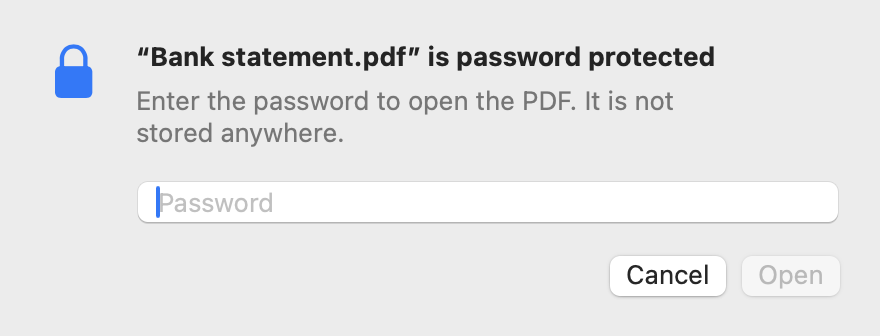
Bank statements and contracts often arrive with a password, and you don’t want to type it every time you open them. The app asks once. Then File › “Remove Password …” saves a copy without protection, or overwrites the original if you confirm.
- PDFs that only block printing or copying need the permissions password for this, as in Preview and Acrobat
- The app never stores the password itself
The small stuff
Small things that usually go wrong.
Saving without breaking anything
⌘S overwrites the original and burns the signatures in, so nothing slips afterwards. ⇧⌘S saves a copy. “Share” sends a signed copy by Mail, Messages or AirDrop and leaves the original as it is.
Opening files like a normal person
Double-click in Finder, “Open With”, drop onto the Dock icon or into the window, or pick from the recent files. Everything you expect to work does what you expect.
A proper Mac app
The app follows your system’s language (English or German) and light or dark mode. Print with ⌘P, zoom with ⌘+, ⌘− and ⌘0, and the tools have keyboard shortcuts too, such as ⇧⌘U to sign.
Under the hood
Built native. Not wrapped in a browser.
No Electron, no website in disguise. The interface is SwiftUI, and everything that touches the document is Apple’s PDFKit, the same framework Preview on macOS is built on. That’s why the app starts instantly and behaves like a Mac app: it is one.
I don’t want to give anyone an app that mangles their contracts. So every change runs through a self-test that checks the critical parts down to the pixel: do burned-in signatures land where they belong? Does merging lose a page? Is a file really unencrypted after its password is removed? If any answer is no, the change doesn’t ship.
Tech
Installation
Two minutes. Really, two.
Download
Press the button at the top. You get a DMG, not a form.
Drag it across
Open the DMG and drag PDFsPDFsPDFs onto the Applications folder, the window shows you where. This matters, otherwise the app can’t update itself later.
Open it
The app is notarized by Apple, so macOS opens it straight away. After that it fetches new versions itself through Sparkle.
Questions
What people ask me.
Why not just use Acrobat Reader?
For a single signature Acrobat is fine. It gets awkward when two people need to sign the same document, because then the file travels back and forth. In PDFsPDFsPDFs you add both people and sign one after the other on the same Mac. You don’t need an account for that, and the app uploads nothing to a cloud.
Are my PDFs uploaded anywhere?
No. The app only goes online to check GitHub for a new version. Your files stay on your disk, and there is no server the app could send them to.
What does the app cost?
Nothing. There’s no subscription and no pro version. The source code is MIT licensed, so you could even resell the app if you’re bored.
Is a signature placed like this legally valid?
For everyday use, yes; for a notary, no. A placed signature is a simple electronic signature, technically the same as printing the document, signing it and scanning it back in. For quotes, forms, cancellations and registrations that is usually enough. Where the law requires a handwritten original or a qualified electronic signature, you need a certified provider. This app can’t do that and isn’t meant to.
Can the app remove a password I don’t know?
No. You enter the password once, then the app saves a copy without protection or overwrites the original if you confirm. If a PDF opens without a password but blocks printing or copying, you need the permissions password, just as in Preview and Acrobat. The password itself is never stored.
Is there a Windows or browser version?
No. The app sits directly on Apple’s PDFKit, so it only runs on macOS 13 or later. A browser version would need exactly what I ran away from: a server your files get uploaded to. Then I’d be the problem I complain about further up.
Why isn’t the app on the Mac App Store?
I hand it out directly on GitHub. There you also get the source code and every older version, and updates still arrive automatically.
How do I report a bug or ask for a feature?
Through the issues in the GitHub repository. The app grew out of my own needs, and those aren’t necessarily yours. So if something is missing, tell me. If you build it yourself, even better: open a pull request.
Why is it called PDFsPDFsPDFs?
Because it does PDFs. PDFs, PDFs and more PDFs. The idea is honestly stolen from How I Met Your Mother, where a song about boats is simply called “Boats Boats Boats” and gets away with it completely straight-faced. The name tells you three times what the app does. There was never a second suggestion.
Get it. It costs nothing and wants nothing.
One download, no sign-up, no email address. If it helps you, great. If something’s missing, open an issue, I read them.