PDFsPDFsPDFs
Built out of sheer frustration
I just wanted two of us to sign something.
One person signs in Acrobat, then the file AirDrops over to the second person, then back again — and at some point it just stopped working for me. So I built a small, tidy PDF toolkit: several people sign side by side, plus merge, split, and drop in text and dates. All on your Mac. And I'm giving it away.
Free · macOS 13+ · MIT licence · no sign-up · English & German
How we got here
Acrobat can sign. Until two people have to sign.
Acrobat handles a single signature fine — as long as you're the only one signing. The moment two names have to go on, the dance begins: I sign, save, AirDrop the file to the second person, who signs and sends it back. Three rounds for two names.
And then one day it just stopped working for me. The signature wouldn't sit right, something jammed, and I was standing in a program that has turned into a mixed bag over the years: cloud here, account there, and the one function I was looking for buried three menus deep.
Yet all of this is small stuff my Mac can do locally. Not just signing — merging, splitting, quickly stamping a date. The only missing piece was a program that does exactly these chores and nothing else. So I built it.
The AirDrop ping-pong
Two signatures means: file over, sign, file back, sign. Three rounds for something that would take two minutes across a table.
The mixed bag
A PDF reader turned into a cockpit. You hunt for the one function between cloud ads, subscription nudges and three layers of menu.
Please sign in first
Before you can save, someone wants your email, then your account, then your document in their cloud. For one name on one page.
What this stands for
Four rules. After that I shut up and you get your PDF.
The app is deliberately small. It does the chores that actually come up — and leaves out the rest that only gets in your way.
Two signatures, one machine
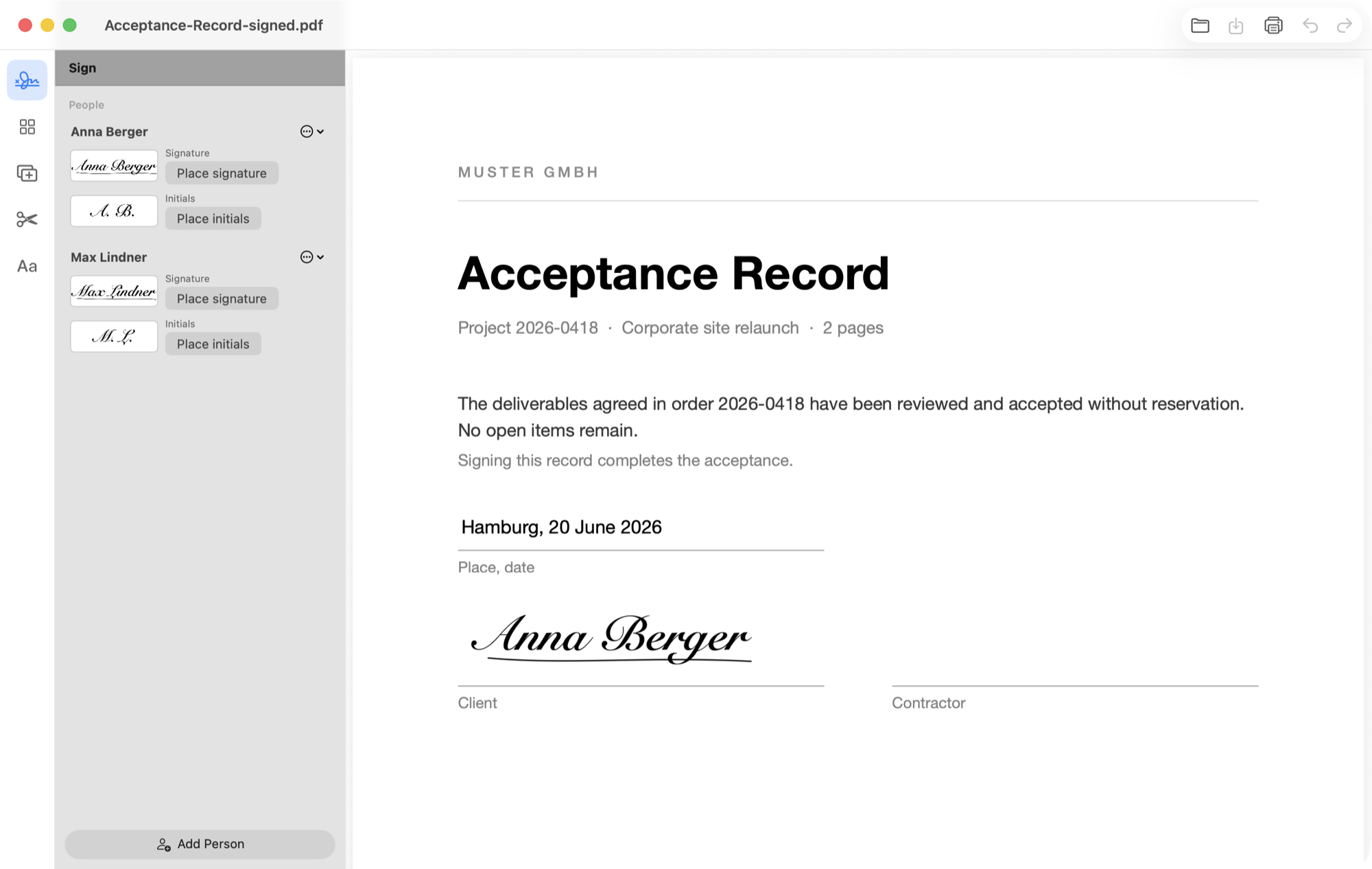
Add both people, each with their own signature and initials, and sign the same document one after the other on the same Mac. No back-and-forth, no AirDrop, no “can you send me that again”.
Tidy, not a mixed bag
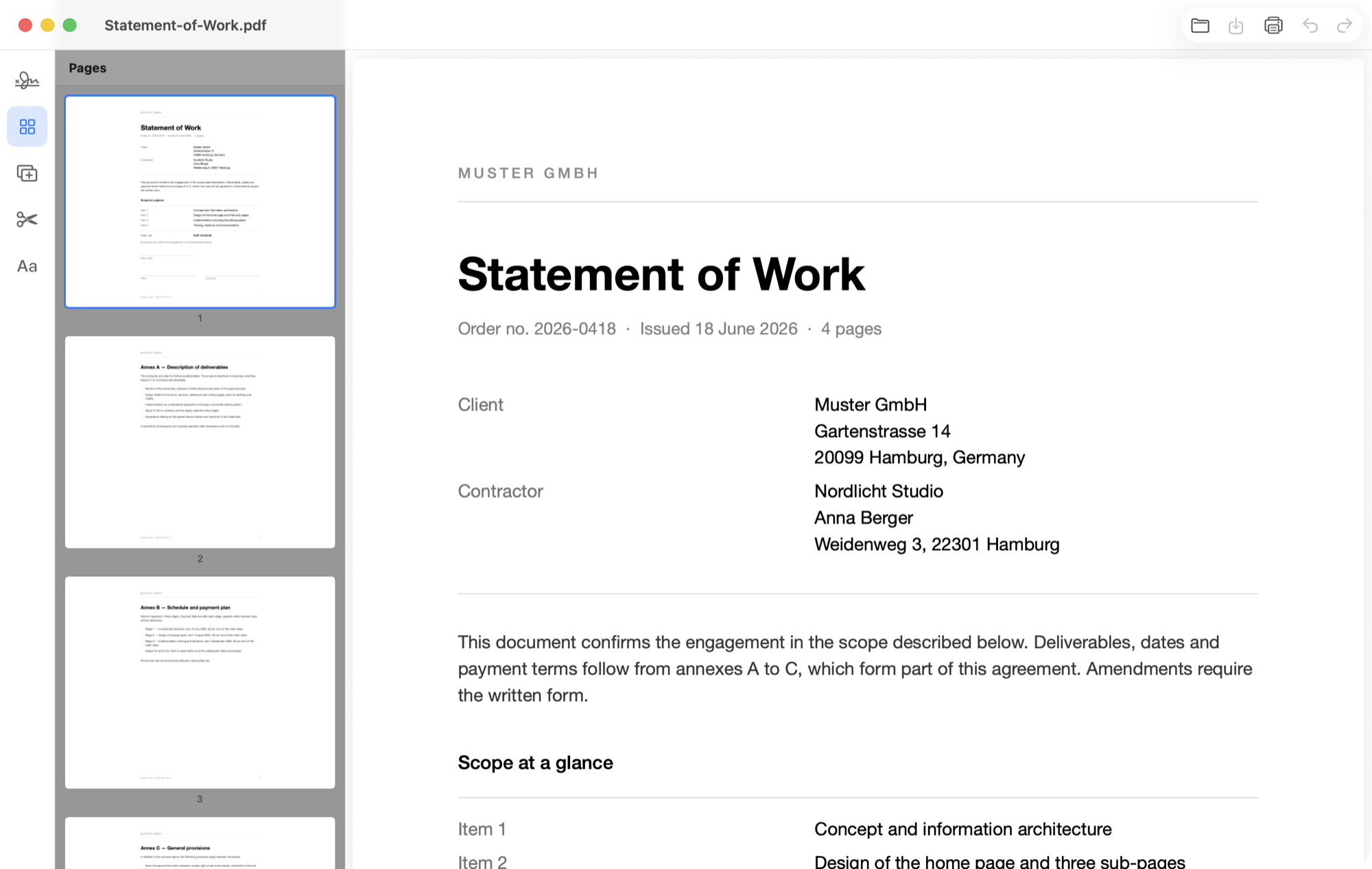
Five tools on the left, each opening its panel, the document always visible. No cloud ads, no subscription banners, no hunting. What you need is where you're already looking.
Everything stays on your Mac
There is no server. No “just upload it briefly for processing”, no account, no cloud. Your documents never leave the machine — there is simply nowhere for them to go.
Free and open
No subscription, no pro version, nothing greyed out. And the whole source is on GitHub under the MIT licence — don't take my word for it, go and look.
What's inside
Five tools. All of them do PDFs.
A narrow rail on the left, each icon opening its own panel — sign, pages, merge, split, text. What's behind them? PDFs. And behind that? Also PDFs.
Signing
Several people, no back-and-forth
The reason the app exists. Add as many people as you like, each with their own signature and initials. Both sign the same document on the same machine, one after the other, done. Drawn once with the trackpad or dropped in as a photo, every signature stays saved.
- —As many people as you like, each with their own signature and initials — no AirDrop between two signers
- —Draw a signature or import it as an image, with the white background stripped out automatically if you want
- —Place it with a click, then drag the corners to resize, rotate it, or send it away with the red cross
- —Cmd+Z on every step, and existing form fields get filled in straight in the document
Pages
Reorder, rotate, bin it
A large preview instead of stamp-sized thumbnails you have to squint at. Right-click a page and the rest explains itself.
- —Rotate, move or delete pages
- —Pull single pages out as their own PDF
- —Pure page operations are written losslessly — text, links and form fields survive
Merging
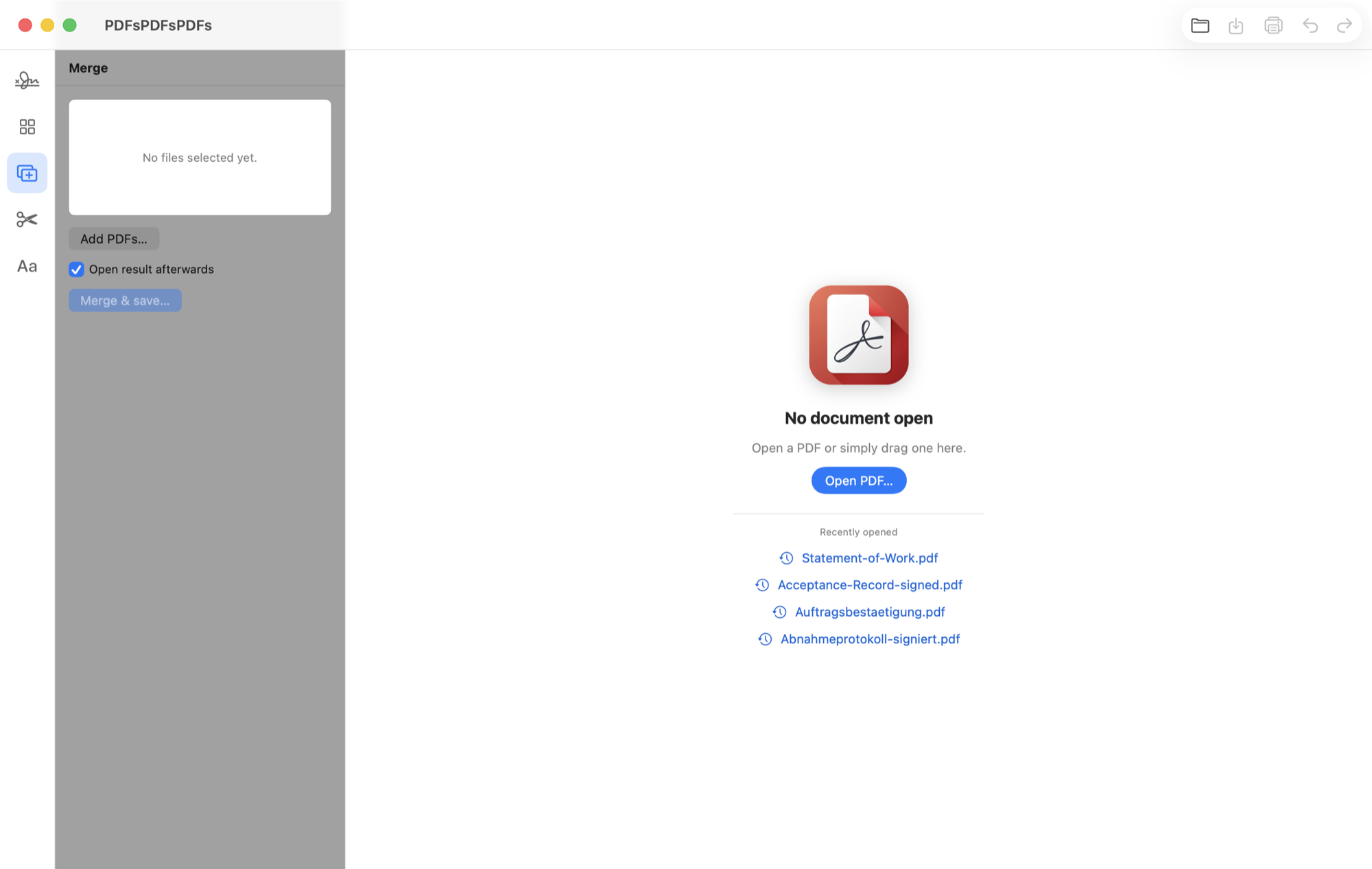
Many PDFs go in, one PDF comes out
Files into the list, set the order, merge. The result is — surprise — a PDF.
- —Reorder with the arrows, throw files back out again
- —Unsaved changes to the open document come along for the ride
- —The start screen remembers recent files and takes PDFs by drag and drop
Splitting
Only the pages you need
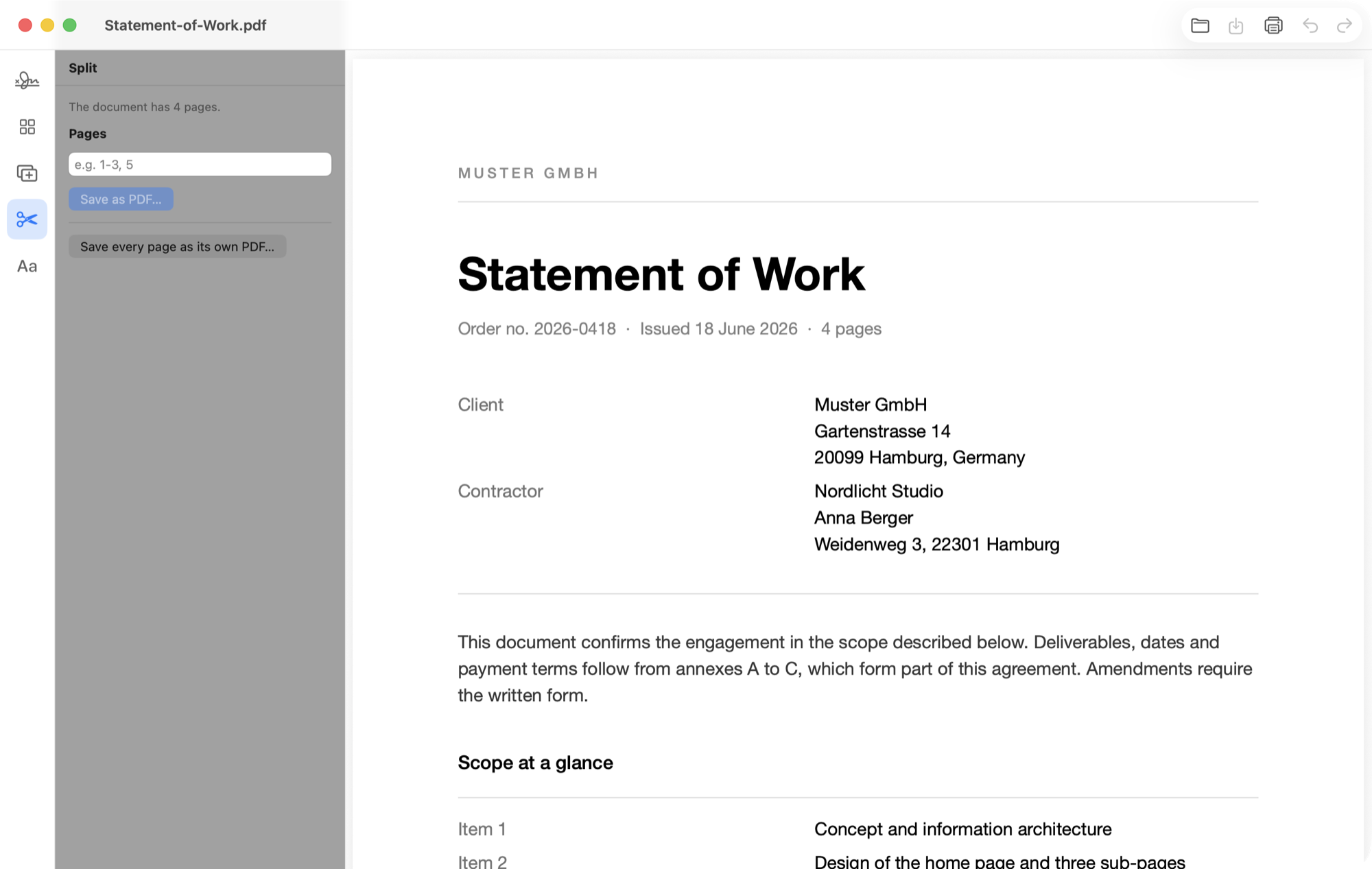
Type “1-3, 5” and pull them out. Or write every page to its own file, if you really want to commit.
- —Page ranges in the notation you already use
- —Or every page as an individual PDF
- —The original stays exactly as it was
Text & date
For the one field still missing
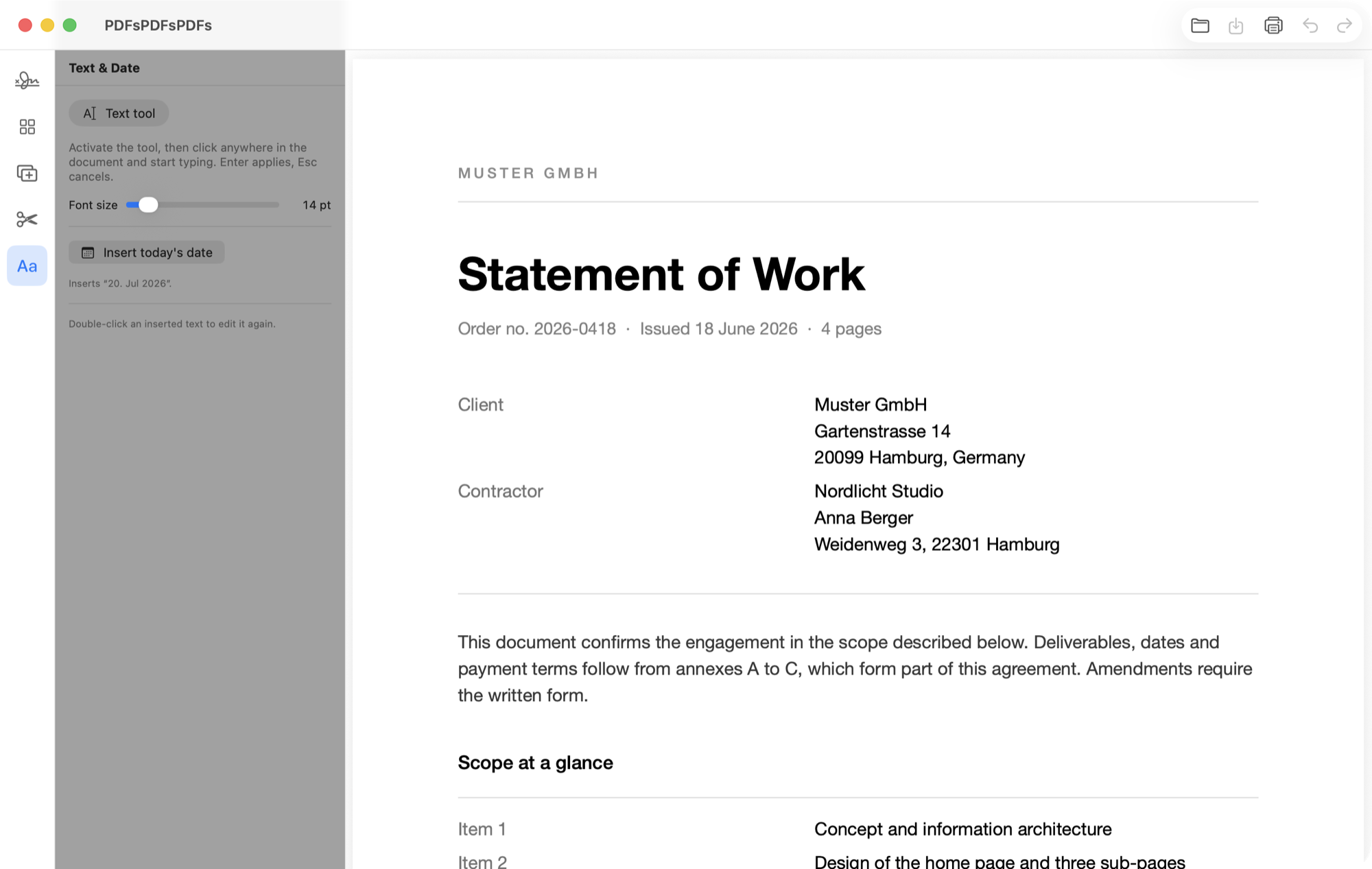
Drop text or today's date anywhere on the page. The font size lives in the toolbar while you type — not afterwards in a dialog with an OK button.
- —Place text and change it later with a double-click
- —Insert the date with one click, because nobody wants to type the date
- —Adjust the font size live, no detour
Convert
Images in, PDF out — and back
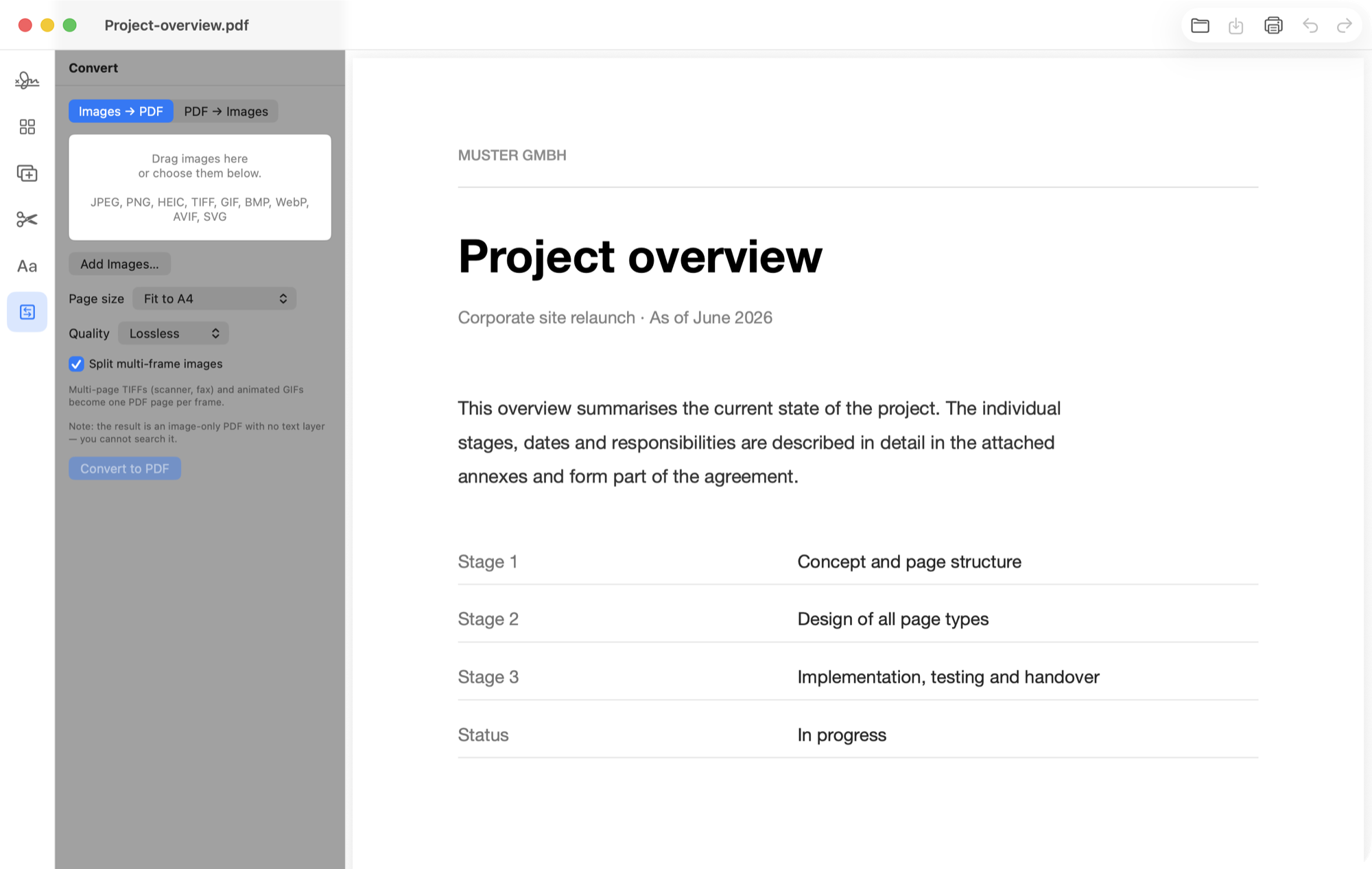
Pour photos, scans or screenshots into a PDF. Or pull every PDF page back out as an image. All on your Mac, nothing uploaded.
- —JPEG, PNG, HEIC, TIFF, GIF, BMP, WebP, AVIF and SVG
- —Drag & drop several images, reorder them, merge into one PDF
- —Multi-page TIFFs and animated GIFs become one page each — nothing gets lost
- —PDF → images as PNG, JPEG, TIFF, HEIC or AVIF at 150/300/600 dpi
The small print
The details other programs get wrong.
Saving that breaks nothing
Cmd+S overwrites the original and burns the signatures in for good — nothing shifts afterwards. Cmd+Shift+S writes a copy instead. Pure page operations are saved losslessly, rather than recomputing the whole document.
Opening like a normal person
Double-click in Finder, “Open with”, drop it on the Dock icon, drag it into the window, or pick it from the recent files. Everything you expect does exactly what you expect.
English and German
The app follows your system language. Print with Cmd+P, zoom with Cmd +, Cmd − and Cmd 0. All of it where it belongs on a Mac.
Under the hood
Built native. Not wrapped in a browser.
No Electron, no website in disguise, no 300 MB for a bit of PDF. SwiftUI for the interface, Apple's PDFKit for anything that touches the document — the same machinery macOS Preview sits on. The app launches instantly and behaves like a Mac program, because it is one.
And because I don't want to hand anyone an app that shreds their contracts, a self-test runs before every release and checks the critical parts at pixel level: do burned-in signatures really land where they belong? Does merging ever lose a page? Does the rest of the document survive a deleted page? If any answer is no, there is no release.
Technology
Installation
Two minutes. Actually two.
Download it
Hit the button up top. You get a DMG, not a form.
Drag it into the window
Open the DMG and drag PDFsPDFsPDFs onto the Applications folder — the window shows you exactly where. This part matters — otherwise the app can't update itself later.
Wave it through once
macOS will complain on first launch. On macOS 15: open the app once, then go to System Settings → Privacy & Security and click “Open Anyway”. On macOS 13 and 14 a right-click on the app followed by “Open” is enough.
Why does macOS complain at all?
Because the app isn't notarised with Apple. That costs 99 a year, and I'm giving the app away — the maths didn't work out. The price is exactly one extra click on the very first launch. After that it keeps itself up to date via Sparkle, and anyone suspicious can read the source instead of trusting me.
Questions
What people keep asking.
Why not just use Acrobat Reader?
For a single signature Acrobat is perfectly fine. It gets awkward exactly when two people have to sign the same document — then you're passing the file back and forth. Here you add both people, and both sign on the same machine. On top of that the app is deliberately tidy rather than stuffed full, and it uploads nothing to a cloud.
Are my PDFs uploaded anywhere?
No. The app only talks to the network to check GitHub for a new version. Your documents are opened, edited and saved entirely on your own disk. That isn't a promise, it's architecture: there is no server for them to go to.
What does the app cost?
Nothing. No subscription, no trial, no pro version, no sign-up, no “free” with an asterisk. The source is under the MIT licence — you could even resell it if you were bored.
Is a signature placed this way legally valid?
Short version: fine for everyday use, not for a notary. An inserted signature is a simple electronic signature — technically the same as printing a document, signing it and scanning it back in. For quotes, forms, cancellations and registrations that is normally enough. Where the law requires written form or a qualified electronic signature you need a certified provider. This app can't do that, and doesn't want to.
Is there a Windows or browser version?
No. The app sits directly on Apple's PDFKit and therefore runs only on macOS 13 or newer. A browser version would need precisely the thing I ran away from: a server your files get uploaded to. Then I'd be the problem I'm complaining about further up this page.
Why isn't the app in the Mac App Store?
Because the store requires a paid developer programme. As long as the app costs nothing, I hand it out directly through GitHub. You get the source code and every older version thrown in.
How do I report a bug or ask for a feature?
Through the issues in the GitHub repository. The app grew out of my own needs, and mine aren't yours. If something's missing, say so. If you build it yourself, a pull request is even better.
Why is it called PDFsPDFsPDFs?
Because it does PDFs. PDFs, PDFs and more PDFs. The idea is cheerfully stolen from How I Met Your Mother, where a song about boats is simply called “Boats Boats Boats” and gets away with it completely straight-faced. The name tells you three times what the app does. There was never a second suggestion.
Go get it. It costs nothing and wants nothing.
One download, no sign-up, no email address, no “we'll be in touch”. If it helps you, great. If something's missing, open an issue — I read them.